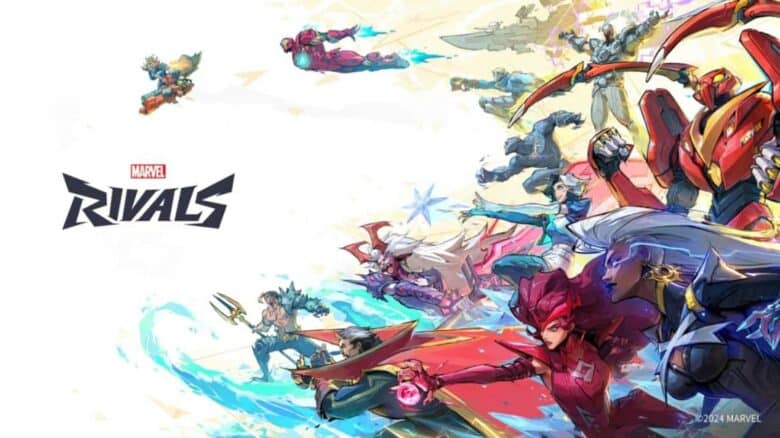
Marvel Rivals operates as a live service game that frequently rolls out new updates to maintain a dynamic experience. Each update often brings new heroes, cosmetic items, and gameplay adjustments that shape the competitive balance. Staying current with these updates ensures players can access the latest content and participate in seasonal events without delay.
For newcomers, understanding how to keep the game updated can be confusing at first. Knowing how to install patches and enable automatic updates helps avoid version mismatches and ensures smooth access to new features as soon as they become available.
How To Update Marvel Rivals
Players can keep Marvel Rivals current by managing updates directly through Steam.
- Open Steam and access the Library tab.
- Locate Marvel Rivals in the game list and select it.
- If an update is available, an Update button will appear beside the game title.
- Click Update, wait for the download and installation to finish, then select Play once complete.
To enable automatic updates, navigate to Steam Settings → Downloads and adjust the configuration under Updates to installed games. Choose Let Steam decide when to update so the client can handle future patches without manual input.
| Setting | Recommended Option | Effect |
|---|---|---|
| Update Mode | Let Steam decide | Automatically installs new patches |
| Steam Running | Required | Ensures background downloads occur |
With these settings, Marvel Rivals stays updated whenever new content or fixes are released.