In Counter-Strike 2, the ability to switch which hand holds the weapon offers both tactical and personal advantages. Players can adjust their view to improve visibility around corners, match their dominant hand, or simply create a more comfortable setup during matches. This small adjustment can influence reaction time and situational awareness, making it a useful tool for players who value precision and control.
Understanding how to change hand positions allows players to tailor the game interface to their preferences. With the right settings or commands, they can quickly adapt their view to different map situations or playstyles, enhancing both comfort and performance.
How to Switch Hands in CS2?
Players can change which side their weapon appears on in Counter-Strike 2 using a built-in toggle. By default, pressing H instantly moves the weapon between the left and right hands. The switch occurs without delay, allowing quick adjustments during firefights or when repositioning around corners. This feature works across all modes, including competitive, casual, and training sessions.
Those who prefer a different key can change it through Settings → Keyboard/Mouse → Switch Viewmodel Left/Right Hand. Many players choose Mouse4, Mouse5, V, or F for convenience. A good bind should be close to movement keys and easy to reach without interrupting gameplay. Practicing the new key in offline or practice sessions helps build consistency before using it in matches.
| Setting Location | Action | Example Input |
|---|---|---|
| Settings → Keyboard/Mouse | Change toggle key | Replace H with V or Mouse4 |
| Settings → Game | Enable console | Turn on Developer Console |
| Console command | Bind toggle manually | bind "h" switchhands |
Players who prefer console commands can enable the developer console under Settings → Game → Enable Developer Console, then open it with the tilde key (~). Several commands control hand switching:
- switchhands – toggles between left and right
- switchhandsleft – forces left-hand view
- switchhandsright – forces right-hand view
- cl_righthand 0 – sets left-hand view
- cl_righthand 1 – sets right-hand view
To assign a key through the console, type bind "h" switchhands, replacing h with any preferred key. This approach gives players more flexibility when customizing their control layout.
A permanent hand preference can also be set under Settings → Game → Item → Preferred Viewmodel Left/Right Handedness. Choosing “Left” starts every match with the weapon on the left side, while “Right” keeps the standard right-hand view.
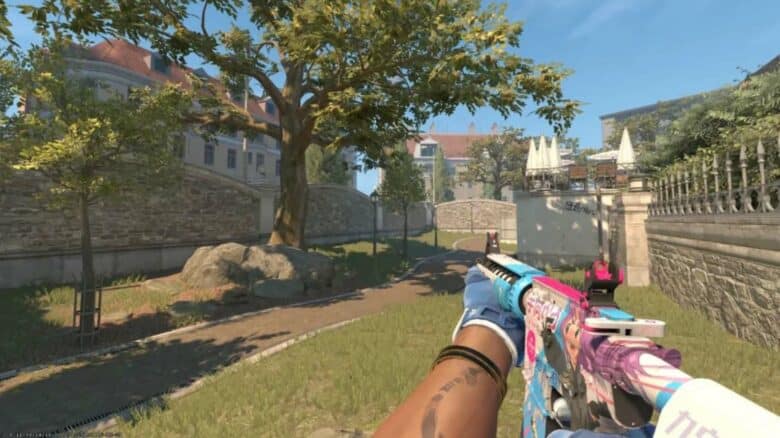
Strategic use of hand switching can improve visibility and reduce exposure. When peeking from the left side of a wall, switching to the left hand can reveal less of the player’s model while keeping the crosshair aligned with the angle. Adjusting hand position based on map layout helps maintain better sightlines and more efficient crosshair placement, giving players clearer views of corners and potential threats.