You rely on console commands in CS2 to adjust settings, create binds, and fine-tune gameplay. Re-entering those commands every time you start the game wastes time and breaks your flow.
Config files solve this problem by letting you store your preferred commands in a single file that runs automatically. When you use a config, you keep your setup consistent and apply your settings whenever you need them.
What is a CS2 Config File?
A CS2 config file is a plain text file that stores your console commands in one place. You use it to apply many settings at once instead of entering each command manually.
Common items stored in a config include:
- Key binds and shortcuts
- Crosshair, HUD, and viewmodel options
- Performance and visual console tweaks
- Training or practice commands
You can run a config automatically on launch, commonly through an autoexec file. You can also execute it manually from the developer console when you need a specific setup.
This approach saves time and keeps your settings consistent. It works for daily play, practice servers, and quick testing sessions today.
What Players Typically Store in CS2 Config Files
You can place almost any console command inside a CS2 config, but most players focus on organization and speed. Configs let you apply consistent setups or trigger complex command groups without repeated manual input.
Personal Settings Configuration
You often use one config to lock in your preferred gameplay settings. This file acts as a portable profile that applies your choices the moment you execute it.
Common entries include:
- Keybinds for weapons, utility, and movement
- Mouse settings such as sensitivity and zoom ratios
- Audio options like volume levels and voice settings
- Video preferences including resolution and performance tweaks
- Viewmodel commands to control weapon position on screen
Players who switch between PCs rely on this setup. When you load into a new system, one command restores your environment in seconds.
| Category | Example Commands |
|---|---|
| Input | bind, sensitivity |
| Visuals | fps_max, viewmodel_* |
| Audio | volume, voice_enable |
Training and Practice Setup Files
You also see configs built specifically for offline practice. These files bundle commands that adjust server rules and training conditions.
Typical practice configs enable:
- Unlimited ammo
- Extended or infinite round time
- Bot removal or control
- Grenade preview tools
Instead of typing multiple commands each session, you execute one file. Your practice server loads with the exact conditions you need, which keeps training focused and efficient.
How to Set Up a CS2 Config
Step 1: Find the CS2 Configuration Directory
Start by opening Steam and navigating to your game library. Right-click Counter-Strike 2, select Properties, then open Installed Files and choose Browse.
From the game folder, follow this path: game → csgo → cfg. This directory stores all configuration files the game can read at launch or during play.
Keep this folder open while you work. You will return to it after creating your custom file.
Typical CS2 config path
| Platform | Location |
|---|---|
| Windows | SteamLibrary\steamapps\common\Counter-Strike 2\game\csgo\cfg |
Avoid editing default files unless you know exactly what each command does. Custom files keep your setup easier to manage.
Step 2: Create Your Custom Config File
Inside the cfg folder, right-click an empty space. Select New, then create a Text Document.
Rename the file to a name you will remember and append .cfg at the end. For example, renaming the file to mysettings.cfg turns it into a usable CS2 config.
Open the file with a text editor. Add console commands line by line, with one command per line for clarity.
Common command categories you may add
- Crosshair and viewmodel settings
- Key binds and aliases
- Mouse sensitivity and zoom values
- Performance and network-related commands
Save the file after making changes. CS2 reads plain text, so formatting stays simple and predictable.
Step 3: Run the Config in Counter-Strike 2
You can load your config either automatically at startup or manually during a session. Choose the method based on how often you want the settings applied.
Automatic execution through Steam
- Open Steam and right-click Counter-Strike 2.
- Select Properties, then stay on the General tab.
- In Launch Options, enter:
+exec mysettings.cfg.
This method works best for core settings you always want active.
Manual execution in-game
- Launch CS2 and open the developer console with the ~ key.
- Type:
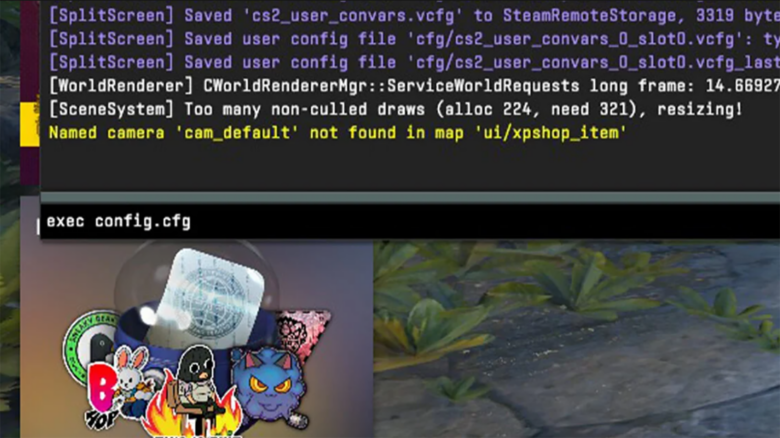
exec mysettings.cfgand press Enter.
Manual execution fits practice configs, server-specific commands, or testing changes without restarting.
Always match the command name to your actual file. One typo prevents the config from loading.