You can improve your Counter-Strike 2 performance by adjusting launch options that run automatically through Steam each time you start the game. These commands let you fine-tune how the game loads, which can help increase FPS, reduce stutter, and create a smoother experience overall.
You do not need high-end hardware to benefit from these settings. Whether you use a budget PC or a powerful system, the right launch options can help you get more consistent performance and better responsiveness in CS2.
Configure CS2 Startup Parameters
Open Steam and locate Counter-Strike 2 in your library.
Right-click the game title and select Properties from the menu.
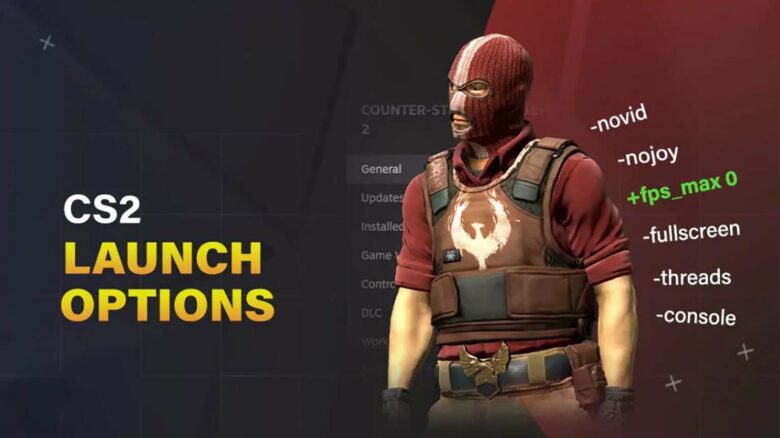
Stay on the General tab and find the field labeled Launch Options. Enter your desired startup commands in that box. Steam saves changes automatically, so you can close the window when finished.
Best CS2 Launch Options Explained
The launch parameters below adjust how Counter-Strike 2 uses your hardware and handles visuals. Some focus on CPU scheduling, others reduce graphical effects, and a few improve startup behavior.
Use only the options that match your system and goals.
-high — Raise Game Process Priority
This parameter tells Windows to run CS2 with higher CPU priority than most background applications.
You may notice fewer micro-stutters and slightly more consistent input response, especially on systems running multiple programs at once.
If your PC becomes unstable or other applications start lagging, remove it and test again.
-threads X — Set CPU Thread Usage
This option controls how many processor threads the game can use. Replace X with your CPU’s total thread count.
For example:
| CPU Type | Example Value |
|---|---|
| 6 cores / 12 threads | -threads 12 |
| 8 cores / 16 threads | -threads 16 |
Setting the correct value can improve minimum FPS stability, particularly during heavy combat or utility usage.
+fps_max 0 — Remove the Frame Cap
This command removes the built-in FPS limit.
You must disable VSync in your video settings for it to work correctly. If you use a high refresh rate monitor, uncapping FPS allows your system to deliver as many frames as possible.
If you prefer controlled frame pacing, set a manual cap instead of using zero.
-nojoy — Disable Controller Support
This launch option turns off gamepad input support.
If you use mouse and keyboard only, disabling controller APIs removes minor background processes. The performance gain is small, but it keeps the game focused on essential input handling.
-softparticlesdefaultoff — Reduce Particle Blending
This setting disables soft blending between particle effects and surfaces.
You may gain a small FPS increase because the GPU performs fewer blending calculations. Visual effects such as smoke edges may appear slightly sharper.
+r_drawparticles 0 — Turn Off Particle Effects
This command disables many particle animations entirely.
Removing visual elements like certain environmental effects reduces GPU load and can improve frame rates on lower-end systems. Expect noticeably simpler visuals.
-fullscreen — Force Exclusive Fullscreen
This parameter launches the game in fullscreen mode automatically.
Exclusive fullscreen typically reduces input latency compared to borderless windowed mode. Most competitive players prefer this setting for consistent performance.
-forcenovsync — Disable Vertical Sync
This option forces VSync off at launch.
VSync limits screen tearing but can introduce input delay. If you prioritize responsiveness, disable VSync and control FPS manually or use adaptive sync technology instead.
-vulkan — Use the Vulkan Graphics API
This setting switches the renderer from DirectX to Vulkan.
Performance depends entirely on your GPU and drivers. Some systems experience better frame consistency with Vulkan, while others run more smoothly on DirectX. Test both and compare average FPS and frame pacing.
+cl_forcepreload 1 — Preload Game Assets
This command loads models, textures, and other assets when the game starts rather than during gameplay.
You may see fewer in-match stutters because the game prepares resources in advance. Initial loading times can increase slightly.
-novid — Skip the Intro Screen
This option removes the Valve startup animation.
It does not improve FPS, but it reduces launch time. If your game crashes mid-match, this setting helps you relaunch faster.
-allow_third_party_software — Enable External Applications
This parameter allows approved third-party programs to interact with CS2.
You need it for software such as recording tools or demo utilities. It does not affect gameplay performance directly, but it enables compatibility with capture or analysis programs.
+mat_disable_fancy_blending 1 — Simplify Texture Blending
This command reduces advanced texture blending effects.
The game renders surfaces with fewer visual enhancements, which lowers GPU workload. You gain performance at the cost of slightly reduced visual detail.
+r_dynamic 0 — Disable Dynamic Lighting
This option turns off certain dynamic lighting effects.
Lighting calculations require GPU resources, especially during firefights with muzzle flashes and utility usage. Disabling them can improve frame stability on weaker graphics cards.
You can combine multiple options in a single launch string inside Steam. Test changes individually, measure FPS and frame consistency, and keep only the commands that provide measurable improvements on your system.
What Are the Top CS2 Launch Options for Higher FPS?
You can improve frame rates by setting a small group of launch commands that reduce background load and remove limits. Start with:
+fps_max 0 -forcenovsync -high -nojoy -novid -fullscreen
- +fps_max 0 removes the default FPS cap.
- -forcenovsync disables V-Sync to lower input delay.
- -high gives the game higher CPU priority.
- -nojoy disables joystick support to free minor resources.
- -novid skips the intro video.
- -fullscreen ensures exclusive full-screen mode.
Adjust other settings based on your system. Most FPS gains still come from lowering in-game video settings rather than stacking extra launch commands.
Recommended Launch Settings for Low-Spec Systems
If you use older or entry-level hardware, focus on limiting visual load and optimizing CPU usage:
-threads X -nojoy -novid +fps_max 150 +cl_forcepreload 1 +mat_disable_fancy_blending 1 +r_dynamic 0 -softparticlesdefaultoff -fullscreen
Set -threads X to match your CPU core count.
Disable dynamic lighting and advanced blending to reduce GPU strain.
Cap FPS to a stable value to prevent system spikes.