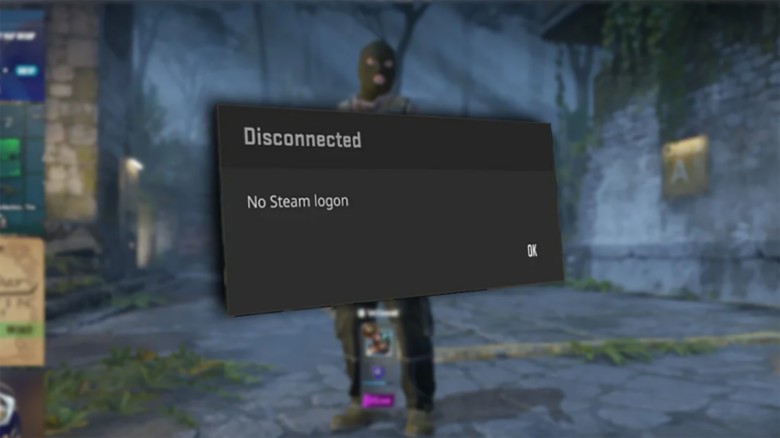
The No Steam Logon error in Counter-Strike 2 can block you from joining matches and disrupt your playtime. You may notice that the problem persists instead of resolving on its own.
When this error appears, you still have practical steps you can take to address it. Several fixes exist because the issue can stem from different causes, and trying each option improves your chances of restoring access.
Log out and back into Steam to resolve the CS2 No Steam Logon error
Start with a full account sign-out rather than just closing the Steam window. You need to disconnect your Steam session and authenticate again to refresh your connection with Steam services.
Steps to follow:
- Open Steam and select Steam > Log out
- Close Steam completely after logging out
- Reopen Steam and sign in again
- Launch CS2 and test matchmaking
Many players report stable sessions after this reset.
Change your Steam profile picture and display name
You can resolve this issue by updating your Steam avatar and display name. This adjustment refreshes your account data and has helped some players clear similar CS2 login problems.
Steps to follow:
- Open your Steam profile and select Edit Profile
- Change your profile picture and display name
- Restart the Steam client
After you apply the changes, launch Counter-Strike and play any game mode once. Keep the new settings active during that session before switching back to your original name and image.
Back-to-basics: Check Steam status, verify Steam files and restart your PC
Start by confirming that Steam and Counter-Strike services operate normally. Visit the Steam status page and look for outages affecting login, matchmaking, or the CS network. When servers show problems, you can only wait until Valve resolves them.
If services look healthy, check your local game data. Open Steam Library → Counter-Strike 2 → Properties → Installed Files, then run a file integrity check. Steam scans your installation and replaces missing or damaged files automatically.
When issues persist, restart your PC. A full reboot clears stuck background services, refreshes network adapters, and resets cached processes that can block Steam authentication.
Quick checklist
| Step | What you do | Why it helps |
|---|---|---|
| Check status | Review Steam service health | Rules out server-side causes |
| Verify files | Run integrity scan | Repairs corrupted content |
| Restart PC | Power cycle your system | Resets local conflicts |
Complete these steps in order before trying to launch the game again.