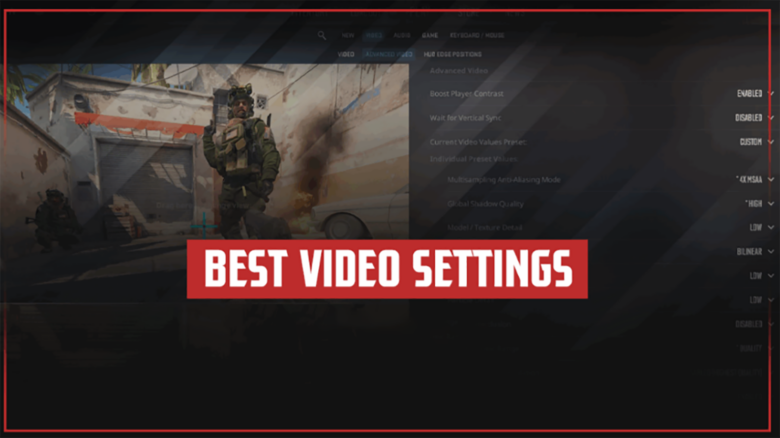
Low frame rates can make Counter-Strike 2 feel inconsistent and harder to control, even when your aim and decision-making are solid. When the game stutters or feels unresponsive, it directly affects how quickly you react and land shots.
You can improve this by adjusting your video settings to prioritize performance and clarity. This article focuses on practical CS2 video settings that help you increase FPS and create a smoother, more reliable competitive experience.
Best CS2 Video Settings for FPS
Screen Presentation Mode
Set the game to exclusive fullscreen to keep frame rates stable and high. This mode lets the game take full control of your display and system resources.
Windowed and borderless options add overhead because the desktop compositor stays active. That extra processing often reduces FPS and increases input delay, which you want to avoid in CS2.
Recommended choice
| Option | FPS Impact | Notes |
|---|---|---|
| Fullscreen | Highest | Best performance and lowest latency |
| Borderless | Lower | Easier alt-tabbing, weaker performance |
| Windowed | Lowest | Not suitable for competitive play |
Screen Shape Ratio
Choose a 4:3 aspect ratio if your goal centers on raw performance and clarity. This format renders fewer pixels per frame, which helps your system maintain higher FPS.
You also gain wider-looking player models on a stretched setup. That visual change makes enemy movement easier to read during fights.
Many players prefer this ratio even on strong PCs because it reduces background detail. The simpler view keeps your attention on crosshair placement and positioning.
Common options compared
- 4:3 (stretched): Higher FPS, wider models, reduced clutter
- 16:9: Sharper image, more peripheral vision, lower performance
- 16:10: Middle ground, still heavier on performance than 4:3
Rendered Resolution
Pair a 4:3 ratio with 1280×960 stretched for a strong balance of speed and visibility. This resolution cuts rendering load while keeping player outlines clear.
Lower pixel counts mean your GPU processes each frame faster. That directly improves average FPS and reduces drops during smokes or utility-heavy rounds.
If your system struggles, you can step down to 1024×768. Expect blurrier visuals, but similar gameplay benefits.
Resolution guidance
| Resolution | Performance | Visual clarity |
|---|---|---|
| 1280×960 | High | Clear models |
| 1024×768 | Very high | Softer image |
| 1920×1080 | Lower | Sharp but demanding |
Display Refresh Speed
Set the refresh rate to the maximum your monitor supports. Common values include 144Hz, 165Hz, and 240Hz.
This setting does not raise FPS by itself. It controls how many frames your monitor can show each second.
A higher refresh rate improves motion smoothness and reduces perceived input delay. Always match this value to your monitor rather than leaving it on a default setting.
Quick check
- Open video settings
- Select the highest available Hz option
- Apply and restart the game if required
Best CS2 Advanced Video Settings for Performance
Once you finalize basic video options, the advanced menu becomes the main driver of performance. These settings affect frame rate, visual clarity, and input responsiveness. You should prioritize readability and consistency over visual polish.
Enhanced Player Visibility
Recommended setting: On
This option improves how player models separate from the map environment. You gain clearer outlines and better contrast in common engagement areas.
You should keep this enabled on all systems, including low-end PCs. The setting adds minimal overhead and directly supports faster target recognition.
In fast exchanges, visual separation matters more than surface detail. Clear player visibility reduces hesitation and supports more reliable crosshair placement.
Vertical Sync Control
Recommended setting: Off
Vertical sync matches frame output to your monitor’s refresh rate. While it can reduce screen tearing, it also adds input delay.
You want the lowest possible latency when tracking or flicking. Even small delays can disrupt timing during aim duels.
Disabling this setting allows your system to deliver frames as fast as possible. You retain full control over responsiveness, which matters more than visual smoothness in competitive play.
Advanced Graphics Configuration
These options provide the largest performance gains when set correctly. The goal is to reduce GPU load while preserving gameplay-relevant visuals.
| Setting | Recommended Value | Why It Helps |
|---|---|---|
| Multisample Anti-Aliasing | None | Removes a heavy GPU cost with little competitive benefit |
| Global Shadow Quality | High | Preserves player shadow visibility for positional awareness |
| Dynamic Shadows | All | Maintains real-time player shadows with minor FPS impact |
| Model / Texture Detail | Low | Cuts memory usage without affecting gameplay clarity |
| Texture Filtering | Bilinear | Reduces processing while keeping surfaces readable |
| Shader Detail | Low | Removes cosmetic effects that clutter the screen |
| Particle Detail | Low | Limits unnecessary visual noise during fights |
| Ambient Occlusion | Disabled | Eliminates shading effects that reduce clarity |
| High Dynamic Range | Performance | Prioritizes frame rate over lighting quality |
| FidelityFX Super Resolution | Disabled | Avoids scaling artifacts and inconsistent sharpness |
Shadows deserve special attention. You rely on them to detect movement around corners and through light sources. Keeping shadow quality high offers real tactical value, even with a small FPS cost.
Most other visual features add detail without improving decision-making. Lowering them cleans up the image and stabilizes performance during utility-heavy rounds.
If you run a high-end system, you can selectively raise shader or particle quality. You should test changes one at a time and monitor frame consistency rather than average FPS.
Stable performance helps you build muscle memory. These settings aim to keep your frame delivery predictable in all situations.