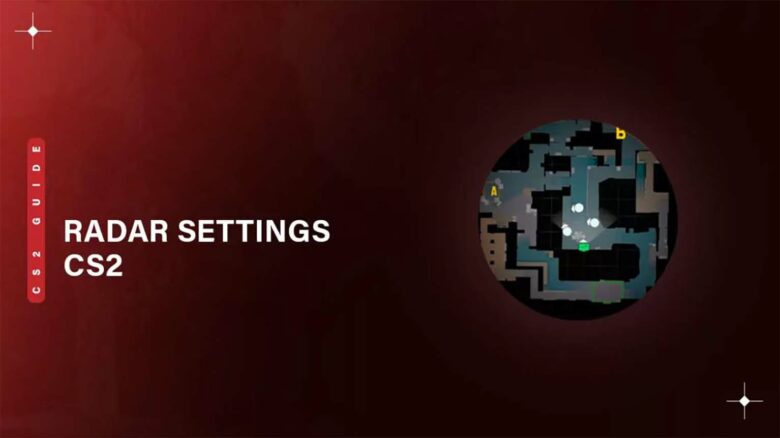
Your radar plays a central role in how you read the match in CS2. It shows rotations, teammate positions, and map control at a glance, helping you react faster and make informed decisions.
CS2 gives you a wide range of radar settings that let you adjust scale, rotation, centering, and overall visibility. By understanding which options matter most, you can tailor the minimap to match your playstyle and improve your awareness in every round.
Complete Guide to CS2 Radar Options
You control every radar adjustment from Settings → Game → Radar. This menu gives you eleven separate options that change how your minimap looks and behaves.
Below is a clear breakdown of each setting and what it affects:
| Setting | What It Changes |
|---|---|
| Center Radar on Player | Locks your position to the middle of the radar when enabled. |
| Rotate Radar With View | Turns the radar as you turn your camera. |
| Blend Map With HUD Background | Merges the radar with the interface background. |
| Blur Radar Background | Applies a blur effect behind the radar. |
| Radar Background Opacity | Adjusts transparency from 0.00 to 1.00. |
| Radar Size | Scales the radar between 0.80 and 1.30. |
| Radar Zoom Level | Controls map zoom from 0.25 to 1.00. |
| Alternate Zoom Level | Sets a secondary zoom value between 0.25 and 1.00. |
| Square Radar Toggle (Scoreboard) | Switches to square shape while holding the scoreboard key. |
| Force Square Radar | Keeps the radar square at all times. |
| Dynamic Radar Zoom | Automatically adjusts zoom based on movement and activity. |
You can combine these options to match your playstyle. Competitive players often prefer higher visibility, minimal clutter, and consistent orientation.
Radar Zoom Settings for Full Map Visibility
If you want to see as much of the map as possible, focus on Radar Zoom Level.
This slider ranges from 0.25 (most zoomed out) to 1.00 (most zoomed in). Lower values display a wider portion of the map, which helps you track rotations and teammate positions earlier.
Set the zoom close to 0.25 for maximum coverage.
You should still test nearby values slightly above 0.25 to balance visibility with clarity, since extreme zoom can make icons smaller and harder to read.
CS2 Radar Commands
You can control your minimap directly through console commands instead of the in-game menu. This method lets you store settings in an autoexec or config file and apply them instantly each time you launch the game.
Enable the developer console in Settings and set it to Yes, then press the tilde (~) key to open it. Enter the commands below exactly as written.
Adjusting the Radar Display Size
Command: cl_hud_radar_scale 0.8–1.3
This command changes how large the radar appears on your HUD. It does not affect map zoom—only the on-screen size of the radar element.
| Value Range | Effect |
|---|---|
| 0.8 | Smaller radar footprint |
| 1.0 | Default size |
| 1.3 | Larger, more prominent radar |
Increase the value if you rely heavily on map information. Lower it if you want more screen space for gameplay.
Controlling Map Zoom Level
Command: cl_radar_scale 0.25–1.0
This setting determines how zoomed in or out the minimap appears. Lower values show more of the map at once.
| Value | Result |
|---|---|
| 0.25 | Maximum zoomed-out view |
| 0.5 | Balanced overview |
| 1.0 | Zoomed in |
Use lower values if you want broader map awareness. Use higher values if you prefer close detail around your position.
Changing Player Icon Scale
Command: cl_radar_icon_scale_min 0.4–1.25
This option adjusts the size of player icons on the radar. You cannot modify it through the standard settings menu.
- 0.4 makes icons smaller and reduces clutter.
- 1.25 makes teammates and enemies easier to spot.
Increase icon size if you struggle to track teammates during rotations. Reduce it if the radar feels crowded.
Toggling Player-Centered Radar
Command: cl_radar_always_centered 0 or 1
This binary command decides whether your position stays fixed at the center.
| Value | Behavior |
|---|---|
| 1 | Your icon remains centered |
| 0 | Radar view shifts across the map |
Set it to 0 if you want to see more of the map without constant re-centering. Keep it at 1 if you prefer a consistent focal point.
Enabling or Disabling Radar Rotation
Command: cl_radar_rotate 0 or 1
This setting determines whether the radar rotates as you turn your view.
- 1 rotates the radar with your camera direction.
- 0 locks the map in a fixed orientation.
Choose rotation if you value directional alignment. Disable it if you prefer a static north-up layout.
Switching to a Square Minimap
Command: cl_radar_square_always 0 or 1
The default radar uses a circular frame. This command switches it to a square layout.
| Value | Shape |
|---|---|
| 0 | Circular |
| 1 | Square |
A square radar shows more map area in the corners. Many players prefer it for increased visible coverage.
Darkening the Radar Background
Command: cl_hud_radar_map_additive 0 or 1
This command changes the brightness and contrast of the map background.
- 0 produces a darker map tone.
- 1 keeps the standard appearance.
A darker background can make player icons stand out more clearly.
Adjusting Radar Background Blur
Command: cl_hud_radar_blur_background 0 or 1
This option controls the radar’s background opacity and blur effect.
| Value | Effect |
|---|---|
| 1 | Default blurred background |
| 0 | More transparent background |
Reducing blur increases transparency but may reduce clarity. Keep it enabled if you prioritize readability.
CS2 Hide Radar Command
Use sv_disable_radar 1 to turn off your minimap completely.
Set sv_disable_radar 0 to restore it.
1= radar hidden0= radar visible