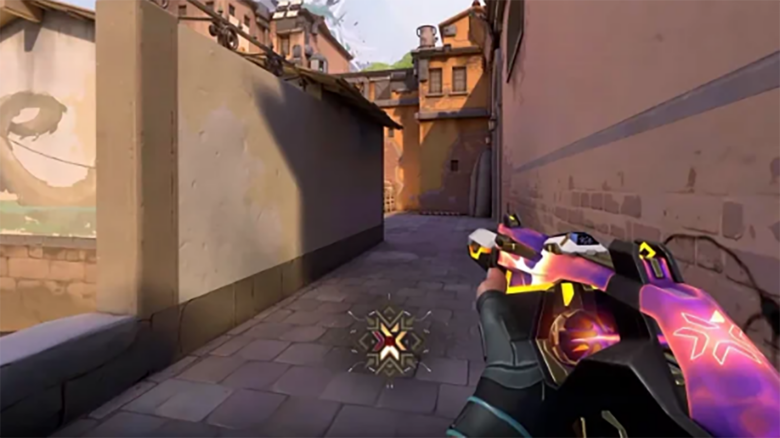
Valorant targets a 16:9 display, yet you still see many players choose stretched resolutions. You can use this setup in 2026 without ban concerns in casual play, and it remains a common preference across skill levels.
When you run a 4:3 resolution like 1280×960, models appear wider on your screen. You trade some image clarity and horizontal field of view for easier tracking and slightly higher frame rates, which can feel familiar if you built muscle memory in other tactical shooters.
How to Play Valorant in Stretched Resolution?
Start by adding a custom resolution through your GPU software. You can choose common stretched options like 1280×960 or 1440×1080, and keep your normal refresh rate to avoid instability.
| GPU | Where to Add Resolution |
|---|---|
| NVIDIA | Control Panel → Change Resolution → Customize |
| AMD | Adrenalin → Display → Custom Resolutions |
Next, force the image to stretch. Set Scaling Mode to Full-screen or Full Panel so the GPU fills the display instead of adding black bars.
Open Valorant and match the settings. Go to Settings → Video → General, select the same resolution, set Aspect Ratio to Fill, and apply the changes.
Optimal Stretched Resolutions for Valorant
You can choose from several stretched options that players use for comfort and visual preference. Each option affects clarity and screen space differently, so your hardware and monitor matter.
| Resolution | Aspect Feel | Practical Notes |
|---|---|---|
| 1600×900 | Mild stretch | Keeps visuals readable with modest FPS gains |
| 1440×1080 | Balanced | Preserves sharpness on high-resolution displays |
| 1280×960 | Strong stretch | Enlarges models and crosshair, reduces clarity |
You should base the choice on what feels consistent during aiming. Stretched settings may improve FPS and input response, but they do not change hitboxes or field of view behavior.