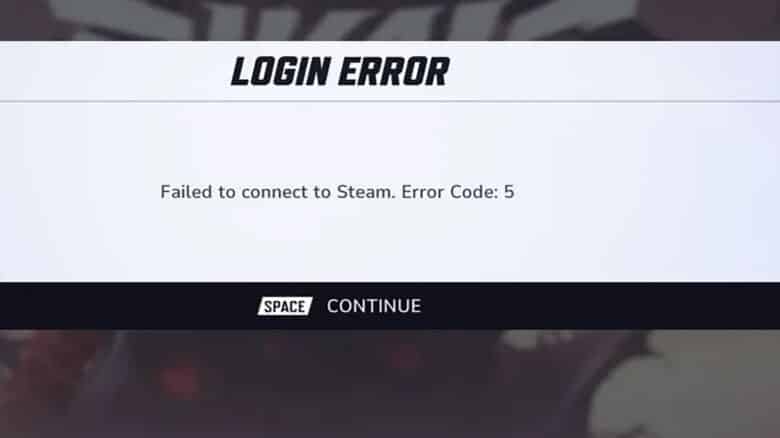
Marvel Rivals players often encounter Error Code 5, a common issue that prevents the game from connecting properly to its servers. This error usually appears as a failed login or connection message and affects users across multiple platforms, including PC, PlayStation 5, and Xbox. It disrupts access to the game, leaving players unable to start matches or connect to online features.
The problem typically stems from unstable network connections, incorrect DNS settings, damaged game files, or security software that interferes with the game’s connection. In some cases, temporary server outages or maintenance periods can also trigger the error. Understanding the causes behind Error Code 5 helps players identify practical solutions and restore stable access to Marvel Rivals.
How to Fix Marvel Rivals Error Code 5?
Error Code 5 typically appears when the game cannot connect properly to Steam or its servers. Players can often fix this issue with a few direct steps before moving to more advanced troubleshooting.
1. Repeated Login Attempts
Many players report that repeatedly pressing the “Continue” or “Enter” button helps bypass the error. The connection may succeed after several tries—usually between 5 and 20—when the issue stems from temporary server congestion rather than a persistent fault.
2. Restart the System
Close Marvel Rivals completely, then restart the computer or console. A clean reboot clears temporary processes that may block the game from connecting correctly.
3. Verify Server Availability
Check the official Marvel Rivals channels, such as social media or the community Discord, to confirm if the servers are online. Websites like Downdetector can also show recent outage reports. If the servers are under maintenance, players must wait until service resumes.
4. Reset Network Settings
Refreshing network configurations can remove corrupted or outdated data that interferes with the connection. Open Command Prompt as an administrator and enter the following commands one by one:
| Command | Function |
|---|---|
ipconfig /release |
Releases current IP configuration |
ipconfig /flushdns |
Clears DNS cache |
ipconfig /renew |
Requests a new IP address |
netsh int ip reset |
Resets TCP/IP stack |
netsh winsock reset |
Repairs Winsock settings |
Restart the device after completing these commands to apply changes.
5. Adjust Firewall Permissions
Windows Firewall may block the game’s network access. Open Windows Defender Firewall, choose Allow an app through firewall, and add the Marvel Rivals executable file (usually found in C:\Program Files (x86)\Steam\steamapps\common\MarvelRivals). Ensure both Private and Public boxes are checked.
6. Disable Security and Overlay Tools
Antivirus programs and overlays can disrupt connections. Temporarily disable antivirus protection or add Marvel Rivals to its exception list. Likewise, turn off overlays such as Discord’s in-game overlay under User Settings > Game Overlay to prevent interference.
Applying these steps typically restores connectivity and allows players to log in without further issues.