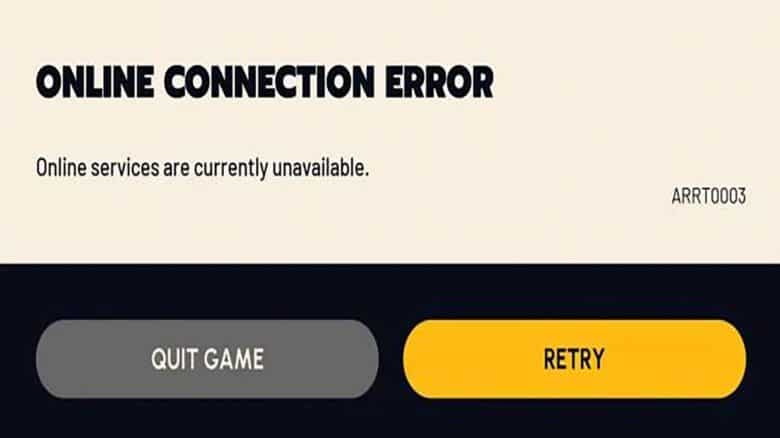
Players of Arc Raiders sometimes encounter a persistent issue known as the ARRT0003 online connection error. This problem interrupts access to the game’s servers and can strike even during active missions, cutting players off mid-session. When this happens, progress may be lost, and gear might not be recovered if the connection fails before extraction.
Reports of this error have become more common, creating frustration among players eager to return to the game. Although disruptive, the issue can often be resolved through basic troubleshooting steps, allowing most users to reconnect and continue playing without major complications.
Arc Raiders ARRT0003 Error: How to Fix
The ARRT0003 connection error in Arc Raiders often appears when the game client fails to link with live servers. It can result from temporary outages, network drops, or local configuration blocks. While the issue may look frustrating, several reliable steps can help restore online access.
1. Check the Game’s Server Status
Players should first determine if the servers are operational. Checking the official Arc Raiders Discord or community tracking sites such as Downdetector shows whether other users are reporting outages. If server downtime is confirmed, waiting for the developers to perform maintenance or release a hotfix is the only option. Attempting repeated logins during this period offers no benefit.
2. Test the Local Internet Connection
If servers are fine, the cause may be the local network. Restarting the router and modem helps refresh the connection. Turning the router off, waiting around half a minute, and powering it back up often clears temporary network conflicts. Wireless users may also switch to a wired connection for a more stable link. Below is a quick check list:
| Step | Action | Purpose |
|---|---|---|
| 1 | Restart router | Refresh network session |
| 2 | Switch to Ethernet if possible | Reduce signal loss |
| 3 | Disable unnecessary background downloads | Free up bandwidth |
| 4 | Test other online apps | Confirm if outage is game‑specific |
3. Verify Arc Raiders Installation Files
If connectivity and servers both appear normal, corrupted or missing files could prevent communication with the servers. In the Steam client, players can right‑click Arc Raiders, select Properties > Installed Files > Verify integrity of game files, then wait for the platform to scan and replace any damaged data. The process may take a few minutes depending on system hardware. Once the integrity check passes, relaunching the game often resolves ARRT0003.
4. Review Firewall and Security Settings
Windows Firewall or similar utilities may block the game’s executable or its Easy Anti‑Cheat component. Access the system’s firewall configuration and ensure ArcRaiders.exe is allowed through both Private and Public networks. If the game is not listed, choose Allow another app, navigate to its installation directory, and add it manually. Disabling active VPN services before launching the game can also remove additional routing barriers.
If all these steps fail to correct the ARRT0003 error, contacting Embark Studios’ support is advisable. Providing details such as the platform, region, and time of occurrence allows the team to troubleshoot deeper server‑side or account‑based issues.