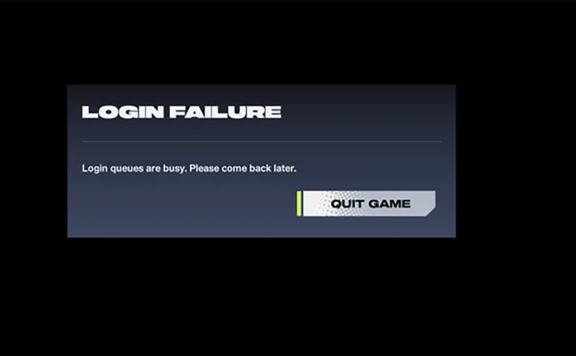
Honor of Kings launched in India on March 11, 2026, and you can now join thousands of players entering the battlefield for the first time. As servers fill up, some players are already dealing with lag, frame drops, and unstable connections.
If your game stutters, freezes, or shows high ping, you can fix it. This guide explains the practical steps you can take on Android or iOS to improve performance and maintain stable gameplay.
What Causes Lag in Honor of Kings
You experience lag for three main technical reasons, not just weak internet. Each issue affects gameplay in a different way and requires a different fix.
- High latency (ping): This measures how fast the game server responds to your actions. For stable MOBA matches, your ping should stay below 80 ms. Higher values create delayed skill casts and slow movement reactions.
- Frame rate drops (FPS): Your device may struggle to render large team fights, heavy particle effects, or new season updates. When FPS falls, animations look choppy and controls feel inconsistent.
- Device overheating: When your phone temperature rises past about 40°C, the processor reduces performance to cool down. This automatic slowdown leads to stutter and sudden frame dips.
Fix 1: Lower Your In-Game Graphics Settings
Open Settings > Graphics in Honor of Kings and reduce visual load to stabilize performance. This step delivers the most immediate improvement on most devices.
Adjust these options:
- Graphics Quality: set to Low or Medium
- Frame Rate: use 30 FPS on 2–4 GB RAM devices; choose 45 FPS on mid-range phones
- Shadows: set to Low
- Particle Effects: switch to Low or Medium
- Role Outline: turn Off
- Anti-Aliasing: keep On for cleaner edges with minimal GPU impact
If you use a higher-end phone, such as one with a Snapdragon 855+ chip, 6 GB RAM, and a 120 Hz display, increase the frame rate to 120 FPS for smoother input response during team fights.
Fix 2: Improve Your Internet Stability
Unstable internet often causes rubberbanding and delayed skill activation. You can reduce these issues by adjusting how your device connects to the network.
- Use 5 GHz Wi‑Fi instead of 2.4 GHz when available. The 5 GHz band usually faces less interference and delivers more consistent speeds.
- If your Wi‑Fi struggles, switch to 4G or LTE mobile data and compare ping results.
- Open the in‑game network settings and enable network optimization to help stabilize latency.
Avoid playing between 8 PM and 11 PM IST, when traffic peaks. Restart your router before you queue to refresh the connection and clear temporary network issues.
Fix 3: Prepare Your Phone for Stable Gameplay
Your device’s condition directly affects frame rate and stability. Set it up properly before you open the game.
- Close background apps from the recent apps screen to free up RAM.
- Restart your phone once to clear temporary memory and refresh system processes.
- Keep at least 2 GB of free storage to prevent slowdowns caused by limited space.
Turn on Gaming Mode if your device supports it. Many brands such as POCO, Realme, OnePlus, and Asus ROG include built‑in performance modes that limit interruptions and optimize resources.
Avoid playing while charging. Heat buildup can trigger thermal throttling and cause sudden FPS drops.
Fix 4: Remove Stored Game Data
Temporary files build up over time and can slow performance without warning. You can remove these files directly from your device settings.
Follow these steps:
- Open Settings
- Select Apps
- Tap Honor of Kings
- Choose Storage
- Press Clear Cache
Clear the cache about once a month or whenever gameplay starts to feel less responsive. Keep at least 5 GB of free storage available so the game runs smoothly and loads assets without delay.
Minimum and Recommended Device Specs
Check your hardware before adjusting settings. If your device sits below the baseline, performance fixes will not deliver steady results.
| Component | Entry Level (60 FPS) | Higher Tier (120 FPS) |
|---|---|---|
| Processor | Snapdragon 660 or similar | Snapdragon 855 or newer |
| Memory (RAM) | 3 GB | 6 GB or more |
| Display | 60 Hz panel | 120 Hz panel |
| Android Version | Android 5.1+ | Android 8.0+ |
| iOS Devices | iPhone 6 / iOS 9+ | iPhone 11 or newer |
| Available Storage | At least 2 GB | 5 GB or more |
Devices that meet only the minimum target stable 60 FPS. Newer mid-range or flagship phones handle 120 FPS more reliably and maintain smoother frame pacing during extended matches.
Optimized Visual Settings for Budget Devices
If you use a phone with 2–4 GB of RAM, lower visual load to keep gameplay stable and responsive.
- Graphics Quality: Low
- Frame Rate: 30 FPS (set manually, avoid Auto)
- Shadows: Low
- Particle Effects: Low
- Character Outline: Off
- FPS Display: On
This configuration reduces strain on your hardware and can improve frame stability by roughly 15–30% compared to default settings, while keeping essential visuals clear during fights.
Match-Ready Performance Check
Run through this quick list before you tap Start to reduce lag and frame drops:
- Close all background apps to free up RAM and reduce CPU load.
- Unplug your phone to prevent heat buildup during gameplay.
- Use 5 GHz Wi‑Fi or strong LTE/5G for lower and more stable ping.
- Set graphics to Low or Medium for steadier frame rates.
- Keep at least 2 GB of free storage to avoid slowdowns.
- Make sure your device feels cool, not warm from earlier sessions.
- Clear the game cache periodically to maintain smooth performance.