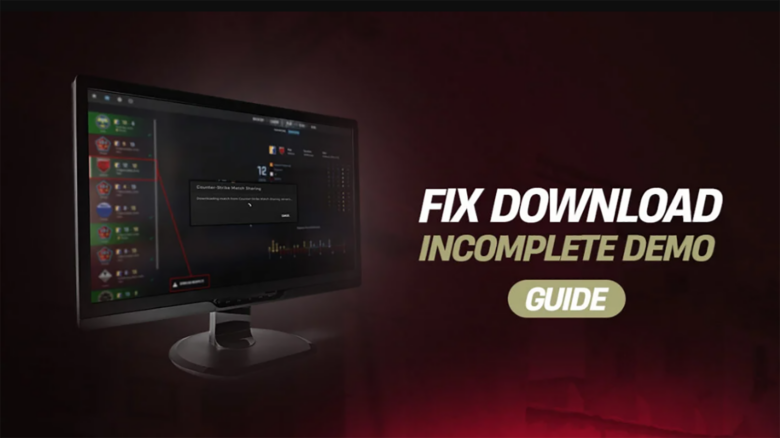
You may run into the CS2 demo Download Incomplete error when you try to open or save a match replay. This issue often appears with recent demos and can stop you from reviewing matches or tracking performance.
You can resolve this problem with a few practical fixes that target common causes like interrupted downloads or file issues. With the right steps, you can restore demo access and continue reviewing your gameplay without delays.
Why the Download Incomplete CS2 demo error appears
You see this error when CS2 cannot access a complete replay file. The game attempts to load or fetch the full match demo and pauses when required data is missing.
Several common conditions trigger the problem:
- Interrupted downloads, often caused by closing the game too quickly or unstable internet connections.
- Damaged demo files that stop CS2 from verifying replay data.
- Server timing issues when you request a demo immediately after a match ends.
- Local cache conflicts that prevent the client from resuming the download correctly.
You most often encounter the error seconds after leaving a match, but it can also appear later. Any situation where CS2 expects a finished replay and cannot confirm its integrity can produce this message.
How to fix CS2 Download Incomplete demo error
Start by removing the broken replay file. CS2 will not fetch the demo again if a partial file still exists, so delete it from the match history before trying anything else.
If you finished a match moments ago, pause for a few minutes. CS2 often needs time to process and publish replays, and early download attempts commonly trigger the error.
Move on to standard Steam checks if waiting does not help. Clear the Steam download cache from Settings → Downloads, then restart Steam and CS2 before retrying the demo.
Verify the integrity of your CS2 files. This scan replaces missing or damaged data that can block replay downloads and cause incomplete files.
Confirm that Steam shows an active connection. Offline or unstable connections can interrupt demo transfers even when the game itself loads normally.
Check your available disk space. Demo files are small, but extremely low storage can still stop the download from finishing.
If possible, switch to a wired Ethernet connection. A stable connection reduces packet loss during demo downloads, especially on busy networks.
Common fixes and what they address
| Action | What it solves |
|---|---|
| Delete the demo file | Allows a fresh download |
| Wait after the match | Replay not processed yet |
| Clear Steam cache | Stuck or corrupted downloads |
| Verify game files | Missing or damaged data |
| Check disk space | Write failures |
| Use Ethernet | Connection instability |
If the error persists, use the match sharing code method. This approach often succeeds when standard downloads fail, as long as the Counter-Strike network remains online.
Click Copy match sharing code next to the download button instead of downloading the replay. Paste the code into your web browser and allow it to open in Steam when prompted.
CS2 will display a Counter-Strike Match Sharing window and begin downloading the replay directly from the sharing servers. Wait until the game loads you into the demo.
Exit the demo once it finishes loading. You can now access and replay it later from the main menu without repeating the process.
This method delivers consistent results because it bypasses the normal replay download flow. If none of these steps work, the replay data itself may be corrupted and unavailable.