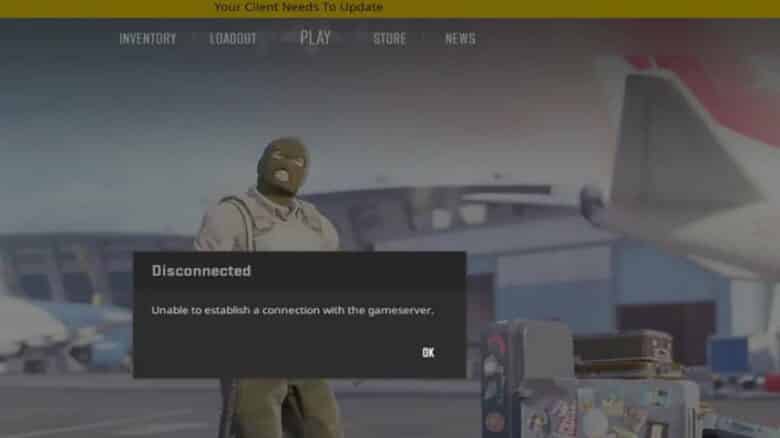
Players of Counter-Strike 2 often encounter technical issues that interrupt gameplay, and one of the most common is the “Your client needs to update” message. This error typically appears when the game fails to recognize the latest update, preventing it from launching properly even after players believe they have installed all necessary files.
The issue can stem from mismatched versions between the client and server or from incomplete updates within Steam. Understanding why this happens and how to resolve it helps players return to the game quickly and avoid repeated disruptions.
Method 1: Restart the Steam Client
- Exit the game and completely close the Steam client.
- Reboot the computer to clear any temporary issues.
- Launch Steam again and open the game to check if it runs correctly.
Method 2: Verify game files
Players can confirm file integrity through Steam by following these steps:
- Open the Steam client and access the Library.
- Right-click the game title and select Properties.
- Under Installed Files, choose Verify integrity of game files.
| Step | Action |
|---|---|
| 1 | Launch Steam |
| 2 | Open Library |
| 3 | Verify game files |
Method 3: Clear the download cache
Clearing the download cache can resolve update conflicts or incomplete downloads. To do this, open Steam and select the Steam menu in the top-left corner. Choose Settings (or Preferences on macOS), then open the Downloads tab.
From there, click Clear Download Cache. Steam will prompt a restart—allow it to close and reopen automatically.
| Step | Action |
|---|---|
| 1 | Open Steam and go to Steam → Settings |
| 2 | Select Downloads |
| 3 | Click Clear Download Cache |
| 4 | Restart Steam and relaunch the game |