Best Delta Force Settings
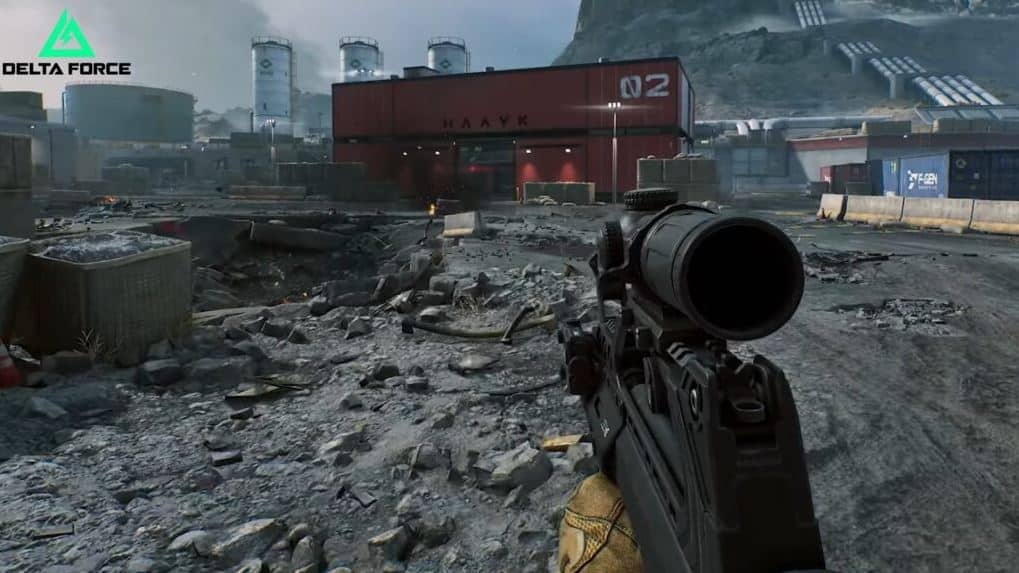
As gaming enthusiasts eagerly anticipate the official release of Delta Force, the tactical shooter is making waves at Steam Next Fest. Offering a thrilling free-to-play experience, Delta Force is packed with various game modes and shares an action-packed style similar to Battlefield, presenting an engaging opportunity for players.
Optimizing in-game settings is crucial for maximizing performance and achieving high frame rates. Understanding the best configurations for both screen and graphics settings is essential for a seamless experience, enhancing gameplay and providing a competitive edge.
Optimal PC Settings for Delta Force
Screen Configuration for Delta Force on PC
General Settings
- Enable Performance Parameters to monitor system performance efficiently.
Tactical Turmoil Configuration
- Turn on Detailed Item Pickup Tips to assist during gameplay.
- Automatically close backup and pickup tabs when under attack.
Havoc Warfare Configuration
- Activate Rotating Perspective to enhance situational awareness.
- Set Infantry Field of View (FOV) to 150 meters.
- Configure Ground Vehicle FOV to 240 meters.
- Adjust Aircraft FOV to 300 meters.
- Set the Minimap Icon Scale to 85% for optimal mini-map readability.
Graphics Setup for Delta Force on PC
Display Configuration
- Choose your favorite gaming monitor for the best display experience.
- Use Auto for Display Adapter selection.
- Set Display Mode to Fullscreen for immersive gameplay.
- Use the maximum refresh rate available on your monitor.
- Let the Aspect Ratio adjust automatically.
- Maintain Brightness at 50 for balanced visuals.
- Unlock the frame rate by setting Frame Rate Cap to Unlimited.
- Set Sharpness at 50 for clear visuals.
- Disable V-Sync for responsive gaming.
Field of View and Basic Graphics Settings
- Set Default FOV to 120 for wide peripheral vision.
- Enable Scope Magnification for precision targeting.
Basic Graphics Configuration
- Utilize Custom graphics preset.
- Select Default style for graphics.
- Turn off Weapon Motion Blur to maintain clarity.
- Set Reflections to Low and Texture Filtering to High.
- Adjust Ambient Occlusion to Medium.
Advanced and Super Resolution Graphics
- Maintain Rendering Scale at 100.
- Disable Depth of Field for sharper images.
- Set Global Illumination Quality to Low and Shaders to High.
- Run Nvidia DLSS in Super Resolution Mode for balance if using a compatible GPU.