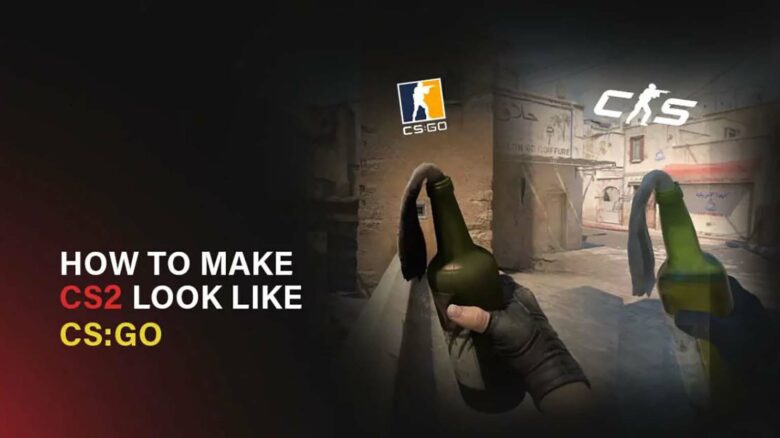
Counter-Strike 2 delivers updated visuals and a new engine, but you may still prefer the familiar look of CS. The older game had a clear, recognizable style that stood out in screenshots and competitive play.
If you want to recreate that visual feel, you can adjust specific video settings and use console commands to bring CS2 closer to the classic appearance. With the right tweaks, you can reduce brightness, refine contrast, and shape the overall image to better match what you remember.
Adjust CS2 Visuals to Resemble CS Using Commands and Settings
You cannot fully restore the exact CS visuals in CS2, but you can adjust several in‑game options to achieve a closer match. Focus on gamma and scaling settings first, as they create the most noticeable change.
Start by enabling the Developer Console in the game settings. Load into a practice match so you can preview changes in real time. Open the console and enter:
r_fullscreen_gamma 3
This command deepens shadows and increases overall color intensity. The result appears darker and more contrasted, which aligns more closely with CS’s visual tone.
Next, open Settings → Video → Advanced Video and modify the following option:
| Setting | Recommended Value |
|---|---|
| FidelityFX Super Resolution | Performance |
Setting FSR to Performance softens image clarity slightly. This reduces the sharper lighting and cleaner edges introduced by Source 2, making the presentation feel closer to the older engine.
If your monitor allows manual image adjustments, lower saturation slightly. A small reduction can tone down the brighter default color profile in CS2. Keep adjustments subtle to avoid washing out visibility.
Keep in mind that CS2 uses a different lighting system and rendering pipeline than CS. You can approximate the older style, but you cannot replicate it exactly using client-side settings alone.